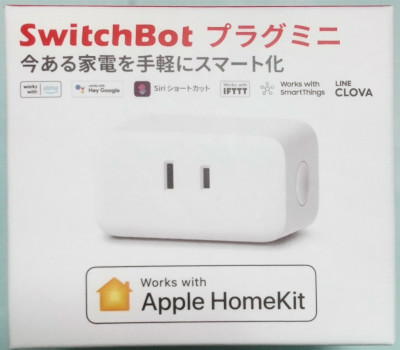
This program turns ON the power of home appliances when AI detection is triggered, and automatically turns it OFF after a specified time.
 Available on GitHub
The AI detection logic itself is the same as the standard built-in detection program, but this version uses a SwitchBot Mini Plug to control power ON/OFF.
When controlling appliance power with a Raspberry Pi, GPIO-based control is commonly used. However, operating 100V AC appliances requires relay circuits. Considering the risks of electric shock and fire, building your own relay circuit is not recommended unless you have sufficient expertise.
In this program, the SwitchBot Mini Plug is used as a simple and safe device to control appliance power directly from software.
The program connects to the SwitchBot Mini Plug via Bluetooth and turns the appliance power ON when an object is detected.
Note that when using this program, the official SwitchBot app is not required at all. Just take the device out of the box and plug it into a power outlet—setup is complete!
AIBOX OS comes with Docker images that can run YOLO11 with NCNN by default.
REPOSITORY                TAG
aicap/arm64/ultralytics   1.0.250923
aicap/arm64/ultralytics   1.0.250923-audio-bt
These images are based on the official YOLO11 images published by Ultralytics. They include all required modules for NCNN conversion and execution, as well as the environment needed to run the aicap command. Therefore, basic YOLO11-based detection programs running on AIBOX OS can be executed inside containers launched from these images.
The image tagged only with the version number (1.0.250923) is the base image with no additional features.
The image with the -audio-bt suffix (1.0.250923-audio-bt) includes additional modules for audio playback
and Bluetooth device access on top of the base image.
Since this program requires Bluetooth control of the SwitchBot Mini Plug in addition to YOLO-based object detection, we will use the 1.0.250923-audio-bt image.
View the Dockerfile
The basic AI detection logic is the same as the built-in detection program.
However, the docker-compose.yml file includes additional settings that allow the Docker image
to access the host’s Bluetooth functionality.
The aicap command execution and SwitchBot access are also defined in separate files.
The files that differ from or extend the standard detection program are listed below.
| File Name | Description |
|---|---|
| extmod.py | Python program for object detection |
| aicap.py | Defines functions for executing the aicap command |
| switchbot.py | Defines a class that handles Bluetooth device access |
| docker-compose.yml | Docker container configuration file |
A script is provided to update all of these files at once.
Log in to AIBOX and run the following command to download update.zip from GitHub.
After extracting it, run update.sh to update all required files.
$ wget https://github.com/daddyYukio/AICAPTURE/raw/refs/heads/main/programs/power_on_appliance/update.zip
After updating, plug in the SwitchBot Mini Plug and reboot the system.
By default, the detected object is set to person.
When a person is detected, a clicking sound is played and the SwitchBot Mini Plug turns ON.
If left untouched, the power will automatically turn OFF after 10 seconds.
If another detection occurs before the power turns OFF, the timer is extended so that the power will turn OFF 10 seconds after the most recent detection.
To check detection results in real time, enable the detection preview feature.
This allows you to view detection results live in a web browser.
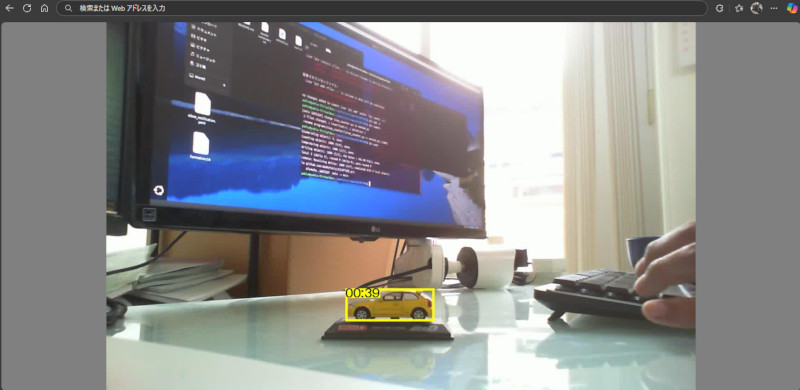
A detailed explanation of the detection program is available as an article on Zenn. Please refer to it for more information.
 【AI CAPTURE】SwitchBotで家電をON/OFF
The method for changing the detected object and adjusting detection accuracy is the same as in the standard built-in AI detection program.
The duration for which the power remains ON is defined by the following external variable
in the extmod.py file.
# SwitchBot power ON duration (seconds)
POWER_ON_TIME_SEC = 10