This guide explains how to configure storage for recordings.
Video data handled by AI CAPTURE is saved to a designated storage location. Therefore, recording cannot be performed if no storage destination has been specified.
Saved data includes not only videos, but also video thumbnail images and detection images sent via push notifications.
*Push notifications can be sent even without a recording storage destination configured, but detection images will not be displayed.
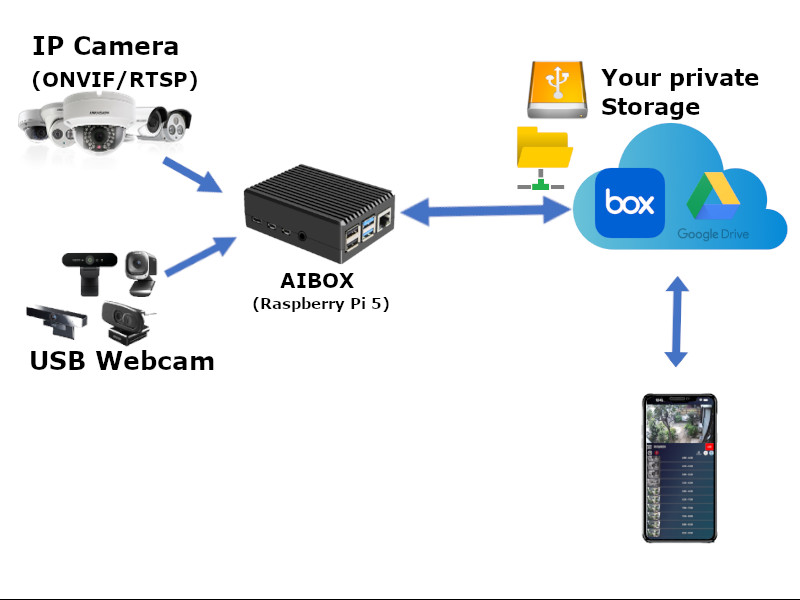
Please configure your recording storage destination before starting to record.
Recording data is saved directly to the configured storage, and our company does not store, manage, or view any recording data.
Please carefully read the AI CAPTURE Terms of Service and, when using cloud storage, the terms of service for your chosen cloud storage provider. Management, protection, backup, etc. of recording data is entirely your responsibility.
After creating your account, launch the smartphone app and open the settings screen.
Press the "Settings" button for recording destination, and the recording storage selection screen will appear. Please select the storage you wish to use.
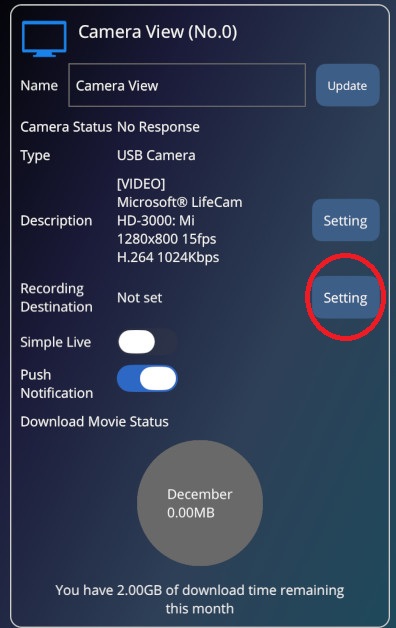
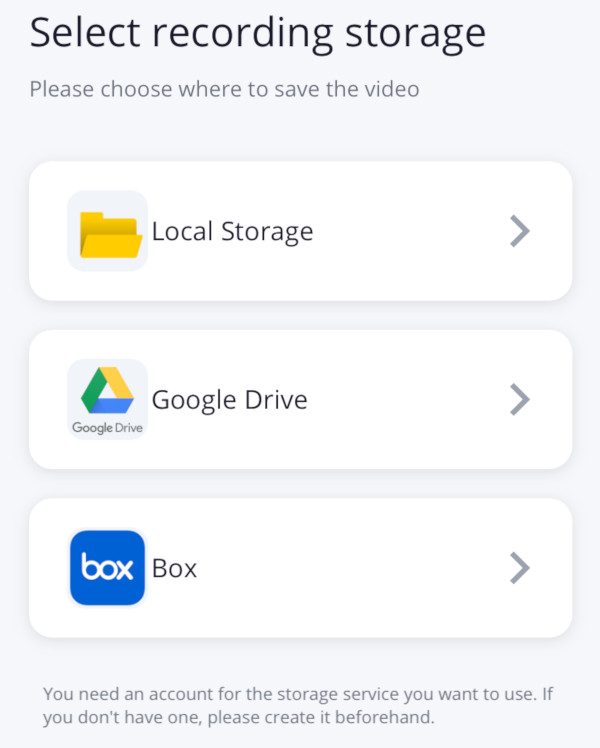
If you have already configured a recording destination, the cloud storage capacity settings screen will open. To change the recording destination to a different cloud storage, press the "Change" button next to the recording destination.
The following storage types can be designated as save destinations in AI CAPTURE.
 Local Storage
Local storage accessible from AIBOX.
You can choose from the following three save destinations:
| Destination | Description |
|---|---|
| External USB Drive |
Save to an external drive connected to AIBOX via USB. For storage devices powered via USB from AIBOX, please use ones with their own power supply as AIBOX may not provide sufficient power. |
| Network Shared Folder (SMB) |
Save to a shared directory on a file server using SMB (Server Message Block). Connect using //Server IP Address/Share Name. Connection is established when AIBOX boots, so please keep the file server running at all times. |
| Direct Save to Local Storage |
Save directly to storage mounted directly on AIBOX. Please note that saving to SD card areas may shorten the SD card's lifespan. |
When local storage is designated as the recording destination, recorded videos cannot be played back in the app when AIBOX is not running.
Please keep AIBOX running at all times.
 Google Drive
A cloud storage service provided by Google.
Free storage is relatively generous at 15GB, but it is shared with other Google app data such as Gmail and Google Photos.
The paid "Google One" version allows expansion from 100 GB to several TB.
A Google account is required to use this service. (If you already have a Google account, you can use that account.)
Google Account Creation Page Box
Box
Cloud storage with strong enterprise and team features, suitable for business use.
Free storage is 10GB, but paid plans allow expansion from large capacity to unlimited.
Box Account Creation PageCloud storage usage fees are not included in this service's usage fees.
When you select cloud storage as the recording destination, a browser will launch.
After signing in to the storage service, a screen to grant permissions to AI CAPTURE will appear. Please grant the displayed permissions.
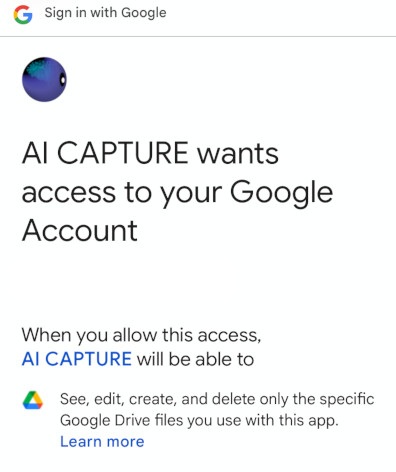
Google Drive Permission Grant Screen
Sign-in to the service may not work properly in some cases. If this happens, try launching the browser in advance and signing in to the storage service before proceeding.
With a recording destination configured, press the "Settings" button for recording destination in the settings screen to open the storage recording capacity settings screen.
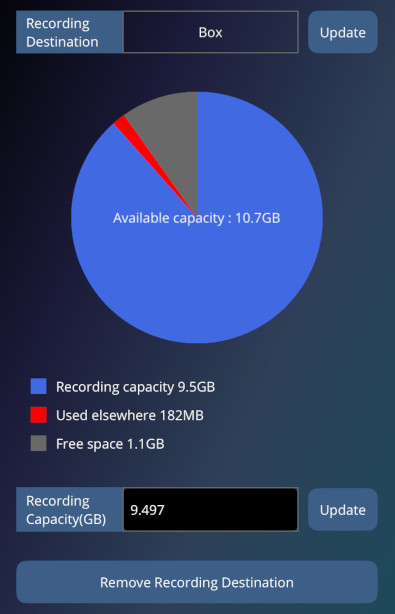
Enter the recording capacity in Recording Capacity (GB) and press the "Update" button to change the recording capacity.
The capacity of recording data is determined by the camera's video bitrate.
For example, recording 1 hour of continuous video from a camera with a video bitrate of 1Mbps requires approximately 450MB of storage capacity.
For USB cameras, the video bitrate can be set in the app's settings screen, but for ONVIF cameras or RTSP cameras, please change the video bitrate in the camera's own settings.
When local storage is designated as the recording destination, the pie chart will not display if AIBOX is not running.
Additionally, the pie chart will not display when Google Drive is specified.
When actual recording data exceeds the configured recording capacity, old data will be automatically deleted.
To change the configured recording storage destination, press the "Change" button next to the recording destination to display the storage selection screen, where you can change the recording storage destination.
To delete the recording destination, press the "Delete this recording destination" button to remove the configured recording storage destination information.
Even if you change the recording storage destination or delete the recording destination, already saved recording data will remain on the storage, but it will no longer be playable in the app.
After specifying the recording destination, let's try recording.
With AIBOX registration and camera settings completed, press the "REC" button in the upper left of the main screen to start recording. (To stop recording, press the REC button again)
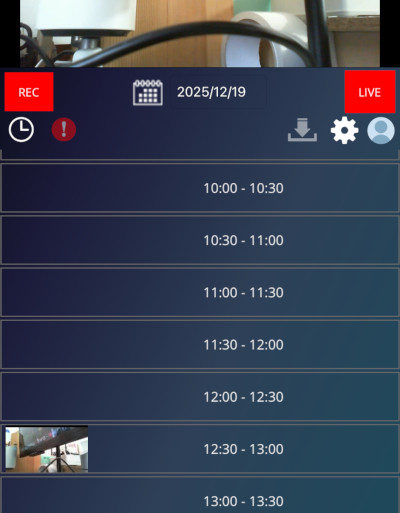
When a thumbnail image of the recorded video appears in the recorded video list, select it and try playing it back. If it plays correctly, you're all set.
If the recording time is too short, playback may not be possible. In that case, wait about 1 minute before trying to play.
Let's verify how recording data is actually saved to storage.
If recording has occurred, a folder named "AICAPTURE" will be created in the top-level (root) folder of the storage.
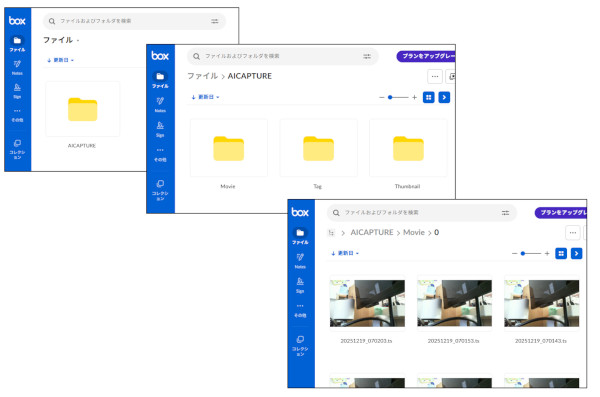
The folder structure is as follows:
Camera No (0~) folders are created under each Movie/Thumbnail/Tag folder, and the actual data is stored inside them.
Please do not modify anything under this AICAPTURE folder while it's being used as a recording destination! (This will prevent playback in the app, etc.)